Model Quantity Analysis
Model Quantity Analysis uses recent product demand to help you evaluate and update Stock Levels in Meevo. It compares each product variant’s current Model Quantity and Order Point with recommended values based on your configured replenishment policy and lead time.
You can review the calculations behind each recommendation, adjust individual Model Quantity and Order Point values, and save selected recommendations directly to Stock Levels.
Model Quantity Analysis supports Retail, Shop Supply, and Miscellaneous Supply inventory.
More on Meevo's Inventory Wizards
Meevo’s inventory analysis tools use historical product activity within your business to provide stocking recommendations that will help your business make more informed purchasing decisions.
- Model Quantity Analysis, covered in this article, uses recent demand and replenishment practices to recommend changes that authorized users can review, adjust, and apply directly to Meevo.
- Inventory Turns Analysis evaluates stocking levels against your business’s inventory-turn goals. It helps you understand how efficiently inventory is moving, and what your stock levels should be to meet your turn goals.
What is Model Quantity Analysis?
Model Quantity Analysis helps determine how much of a product you should maintain and when additional inventory should be ordered:
- Model Quantity: The target quantity of a product to keep in stock.
- Order Point: The inventory level at which the product should be reordered.
For example, if your business typically consumes two units of a product each day and needs seven days to receive additional inventory, Model Quantity Analysis considers the expected demand during that lead time, along with safety stock and your replenishment schedule, when recommending the product’s Model Quantity and Order Point.
Recommendations use a 90-day demand window and a fixed 95% service level. The service level is used when calculating safety stock to help account for variations in demand.
Enabling Model Quantity Analysis
To enable the wizard, go to Meevo > Business Preferences > System Settings and toggle on the option Enable Model Quantity Analysis wizard for inventory model quantity and order point recommendations.
Securing access to Model Quantity Analysis
Access to Model Quantity Analysis is controlled by two security keys:
- Inventory > Model Quantity Analysis: Determines the user's ability to view analysis results.
- Inventory > Model Quantity Analysis > Save Stocking Levels: Controls the user's ability to save and update Stock Levels based on recommendations.
Running Model Quantity Analysis
- From the Main Menu, go to Inventory > Model Quantity Analysis.
- Begin by filtering the products you want to analyze by inventory type, product category, manufacturer, distributor, and active or discontinued status.
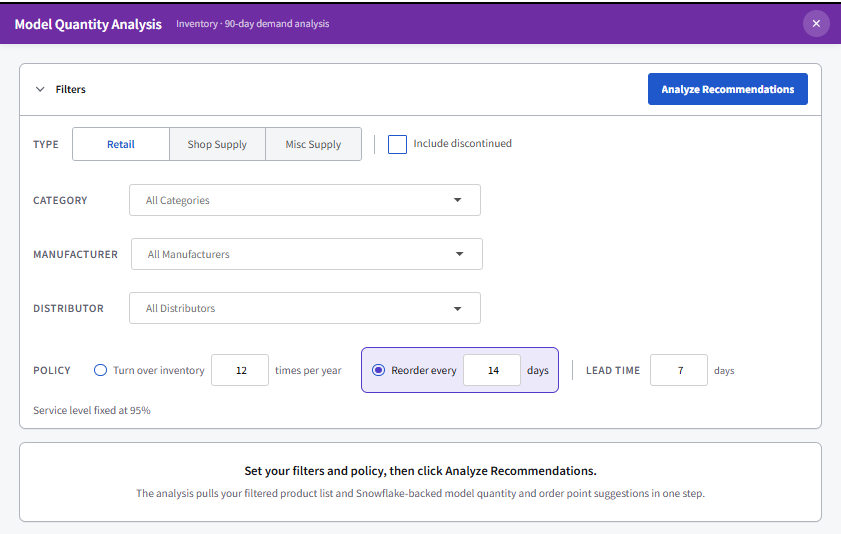
- Select the policy that best represents how you replenish inventory. Only one policy can be selected at a time.
- Turn over inventory: Enter the number of times you want to use and replenish your inventory each year.
- Reorder every: Enter the number of days between inventory orders.
- In Lead Time, enter the number of days it typically takes to receive additional inventory. The default lead time is 7 days.
- Select Analyze Recommendations.
Reviewing the analysis summary
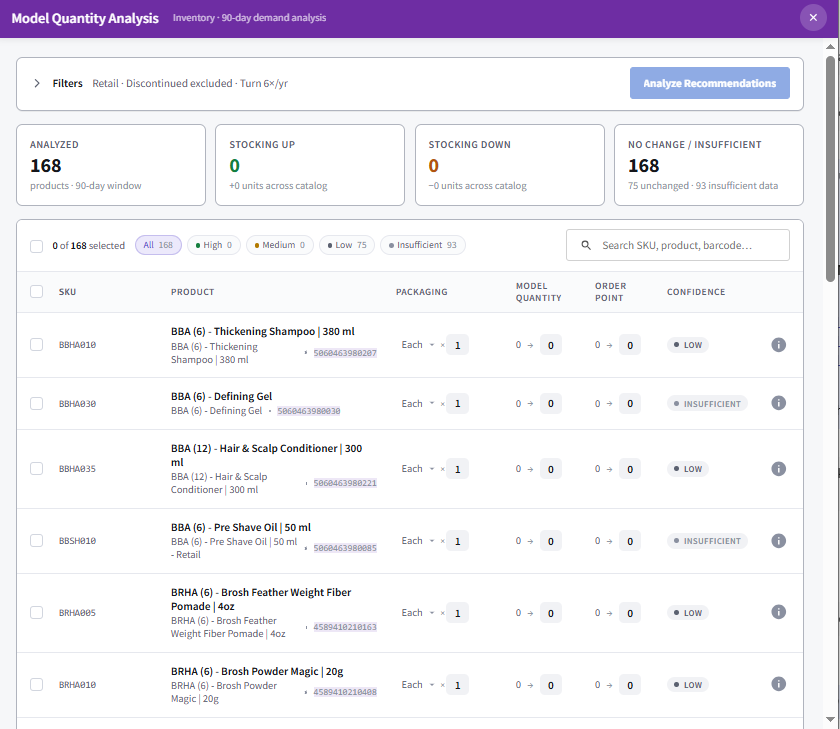
After the analysis runs, the Filters section collapses and summary tiles provide an overview of the results:
- Analyzed: The total number of products included in the 90-day analysis.
- Stocking Up: The number of products recommended for an increase and the total number of units being added.
- Stocking Down: The number of products recommended for a decrease and the total number of units being removed.
- No Change / Insufficient: The number of products with no recommended change or insufficient data.
The results grid can be filtered by High, Medium, Low, or Insufficient Data confidence. You can also search by SKU, product name, or barcode within the grid.
Reviewing product recommendations
The results grid displays the following information for each product variant:
- Packaging: The product’s packaging type and quantity multiple.
- Model Quantity: The current Model Quantity and the recommended Model Quantity.
- Order Point: The current Order Point and the recommended Order Point.
- Confidence: A High, Medium, Low, or Insufficient Data rating indicating the confidence level of the recommendation.
Directional indicators show whether the recommended Model Quantity and Order Point represent an increase, decrease, or no change from the current values.
Products with High or Medium confidence are automatically checked when the recommendation differs from the current stocking levels. You can review and change these selections before saving.
Adjusting a product recommendation
You can edit the Packaging, recommended Model Quantity, or recommended Order Point for an individual product before applying the changes. This allows you to use your own judgment when the suggested values do not fully reflect the product’s purchasing requirements or importance to your business.
- When you change one of these values, Meevo identifies the product as having an override.

- You can use the Overrides filter to display overridden products.
- To restore the original recommendation, select the revert icon beside the overridden value.
- An override affects only that product’s pending update and does not require you to rerun the analysis. The updated values are not applied to Stock Levels until you check the product and select Save Stocking Levels.
Changing the analysis policy
The selected replenishment policy and lead time apply to all products included in the analysis.
If you change the policy, turns-per-year value, reorder cadence, or lead time after generating results, Meevo indicates that the existing results are outdated. Select Analyze Recommendations again to generate new recommendations using the updated settings.
This differs from editing a recommended Model Quantity or Order Point within a product row:
- Changing the policy or lead time requires you to rerun the analysis.
- Editing a product’s Packaging, Model Quantity, or Order Point affects only that product’s pending update and does not require you to rerun the analysis.
Viewing details about a recommendation
Select the information (i) icon at the end of a product row to open its details panel.
The panel shows the product name, variant, SKU, and barcode, along with its current, recommended, and overridden values. The panel also displays the calculations used to determine the recommended Model Quantity and Order Point. If you override a value, you can review the original recommendation.
Use these details and the confidence rating to evaluate the recommendation before updating the product’s stocking levels.
Updating Stock Levels
After reviewing the analysis and making any product-level adjustments, you can apply the recommended stocking levels:
Note: Before saving, the Order Point must be less than or equal to the Model Quantity. If a selected product does not meet this requirement, Meevo identifies the product and prevents the changes from being saved until the values are corrected.
- Check each product whose Model Quantity and Order Point you want to update. You can use the checkbox in the column header to select or clear all products currently displayed.
- Review the number of selected products in the Save bar at the bottom of the wizard.
- Select Save Stocking Levels.
- Review the pending changes and confirm the update. Meevo updates the Model Quantity and Order Point in Stock Levels for the checked products. Unchecked products are not updated.